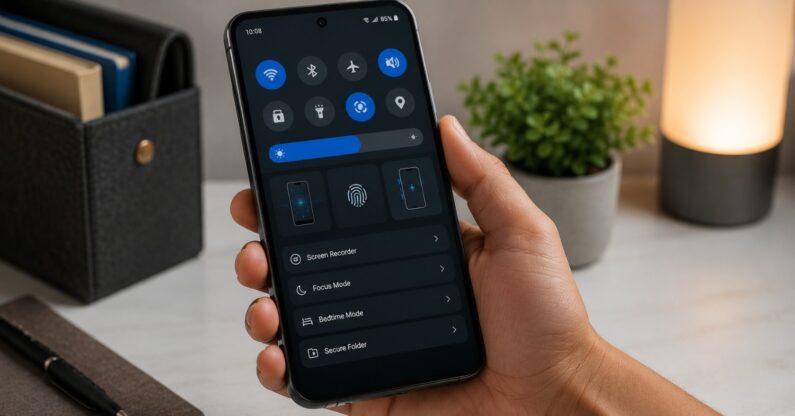
Smartphones have many features beyond the basics. Many users do not know these hidden tips and tricks. Learning about them can improve your experience and save time. This article lists hidden smartphone features you should try now. These tips work on most Android and iPhone devices.
1. Customize Your Quick Settings
Most smartphones let you change the quick settings panel. This panel appears when you swipe down from the top of your screen. You can add, remove, or rearrange icons for Wi-Fi, Bluetooth, flashlight, airplane mode, and more.
How to customize:
– On Android, swipe down twice to open quick settings fully. Tap the pencil icon or “Edit” to change the tiles.
– On iPhone, swipe down from the top-right corner to open Control Center. Tap “Edit Controls” to add or remove buttons.
This feature helps you access important controls faster without going into settings menus.
2. Use Screen Pinning for Security
Screen pinning locks your phone to one app. This feature is useful when you hand your phone to others. It stops them from opening other apps or seeing private content.
How to enable screen pinning:
– On Android, go to Settings > Security & Location > Screen Pinning (path may vary). Turn it on.
– Open the app you want to pin, open recent apps, and tap the pin icon.
– To exit, hold the back and overview buttons together.
iPhones do not call it screen pinning but use “Guided Access” for the same purpose:
– Go to Settings > Accessibility > Guided Access. Turn it on.
– Triple-click the side button to start Guided Access on any app.
3. Schedule Dark Mode
Dark mode reduces eye strain and can save battery on OLED screens. Many phones let you schedule dark mode to turn on automatically at night and off in the morning.
How to schedule:
– On Android, go to Settings > Display > Dark theme > Schedule. Set automatic timing or choose sunset to sunrise.
– On iPhone, go to Settings > Display & Brightness > Appearance > Automatic. You can set a custom schedule or use sunset to sunrise.
Scheduling dark mode gives you comfort without manual changes daily.
4. Silence Unknown Callers
Spam calls waste time and cause annoyance. Both Android and iOS offer ways to silence calls from unknown numbers automatically.
- On iPhone, go to Settings > Phone > Silence Unknown Callers. Activate it to send all calls from numbers not in your contacts to voicemail.
- On Android, app support varies, but many Google Pixel phones have “Call Screen.” You can also use third-party spam-blocking apps.
This feature helps keep your phone quieter and more focused.
5. Use One-Handed Mode
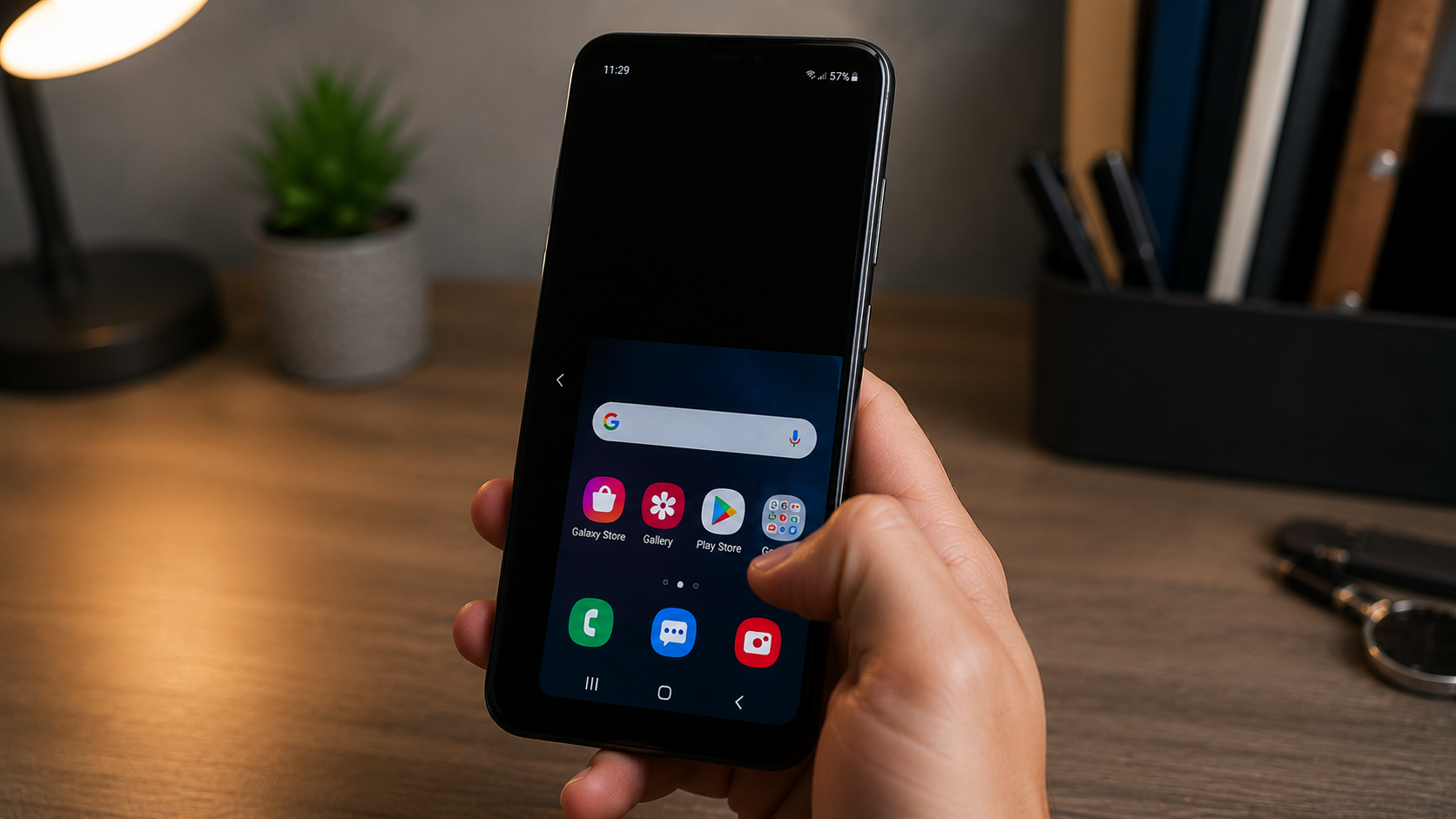
Large screens can be hard to use with one hand. One-handed mode shrinks the display to a smaller size in a corner, making it easier to reach all buttons.
Activating one-handed mode:
– On Android, go to Settings > Advanced Features > One-Handed Mode. You can enable gesture or button methods.
– On iPhone (models with Face ID), swipe down at the bottom edge to trigger Reachability, which shifts the screen down.
This function improves comfort when using your phone on the move.
6. Access Hidden Menus with Code Dialing
Smartphones have hidden menus to test hardware and display system info. You can access some with secret codes in the dialer app. Use these only if you know what you are doing.
Common codes include:
– *#06# to show your IMEI number.
– *#*#4636#*#* on Android to open a testing menu (may vary by device).
– *#0*# on Samsung phones for hardware tests.
Do not change settings you do not understand, as it may affect your phone’s operation.
7. Enable Reading Mode or Blue Light Filter
Reading mode or blue light filters reduce blue light from the screen. This can help you sleep better if you use your phone before bed. It also makes the screen warmer and easier on eyes.
To activate:
– Android: Settings > Display > Blue light filter or Eye comfort shield.
– iPhone: Settings > Display & Brightness > Night Shift.
You can schedule this feature to match your bedtime each night.
8. Scan Documents with Your Phone
Both Android and iPhone have built-in document scanners in their camera or note-taking apps. This feature lets you scan paper documents and save them as PDFs.
- On iPhone, open the Notes app, create a new note, then tap the camera icon and choose “Scan Documents.”
- On Android, Google Drive app lets you scan documents; open Drive, tap the plus sign, then “Scan.”
This tool helps digitize receipts, forms, or important papers quickly.
9. Use Hidden Gestures and Shortcuts
Many phones support gestures or shortcuts that save time by triggering actions. Here are some common ones:
- Double-tap the screen to wake or sleep the phone (availability varies).
- Draw letters on the screen to open specific apps (common on Android).
- Flip the phone face down to silence calls or notifications.
- Use three-finger screenshot or swipe with three fingers to capture the screen.
Check your phone’s settings or user guide to enable and learn gestures available for your model.
10. Improve Battery Life with Adaptive Features
Modern smartphones use adaptive battery and brightness features. These adjust apps and screen brightness based on your habits and environment to save power.
- Android: Settings > Battery > Adaptive Battery.
- iPhone: Settings > Battery > Optimize Battery Charging.
Turning these features on helps your phone last longer through the day.
11. Hide Photos and Files
If you want to hide private photos or files, many phones offer built-in vaults or hidden folders.
- On iPhone, use the “Hidden” album in Photos or lock notes with passwords in the Notes app.
- On Android, use secure folders or file managers with hidden options.
Some apps also provide password protection for added privacy.
12. Use Voice Commands Beyond the Basics
You probably use Google Assistant or Siri for basic commands. Explore advanced commands to control smart home devices, schedule reminders, send messages, or get translations.
Try these:
– “Remind me to call mom at 6 PM.”
– “Turn on the living room lights.”
– “Translate ‘thank you’ to Spanish.”
– “Read my last message.”
Voice assistants save time when multitasking or driving.
13. Control Your Phone with Your Face
Face unlock is more than just a lock screen tool. Some phones let you use facial recognition to authorize payments, log in to apps, or autofill passwords.
Check your settings to enable these options safely. Face recognition offers quick access without typing.